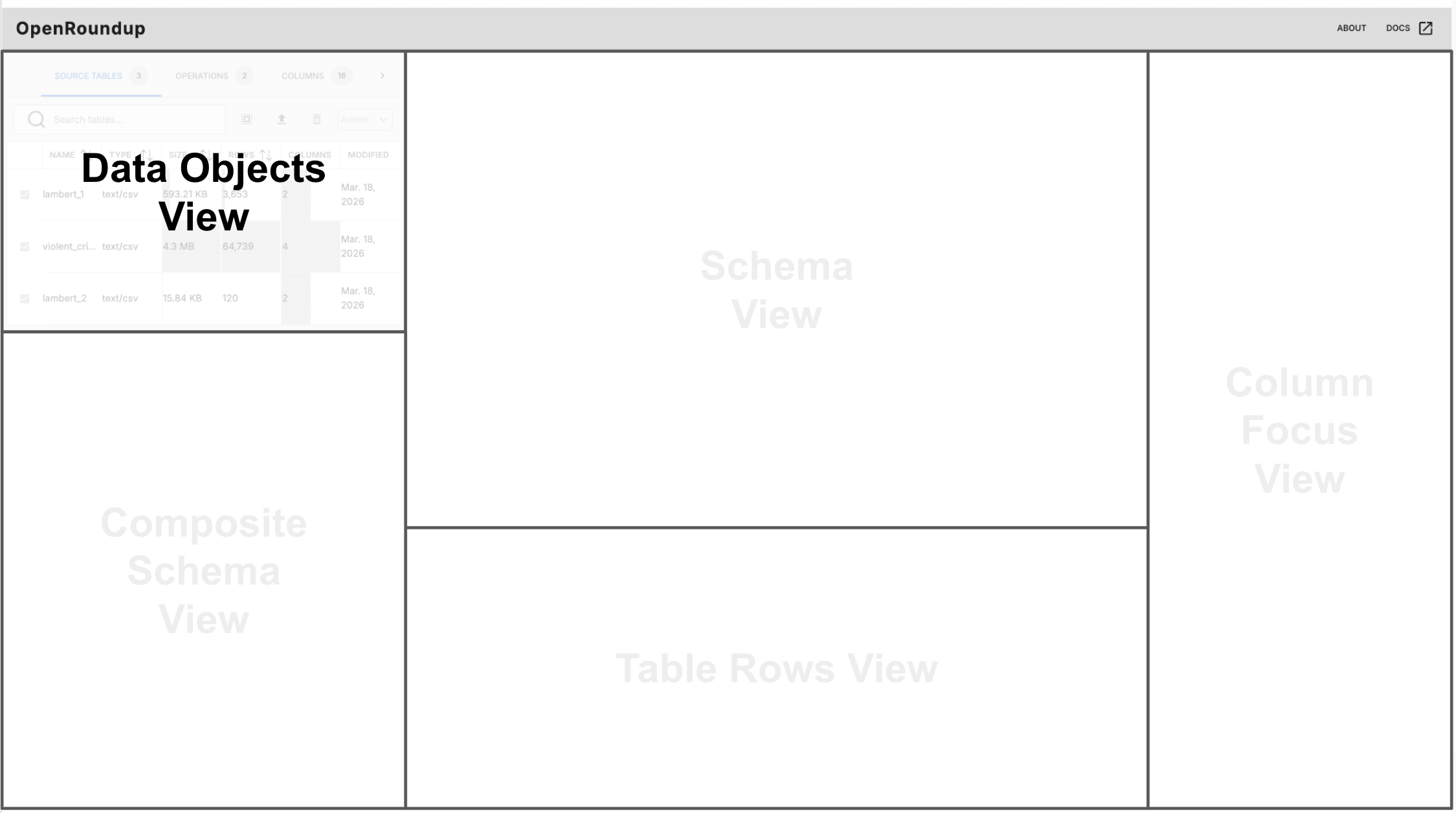
Data Objects View
In the top, right corner of the interface, the Data Objects View provides a comprehensive overview of columns, tables, and operations in OpenRoundup. Within this panel, the user can navigate between three tabs: Source Tables, Operations, and Columns. Each tab offers a distinct perspective on the data objects within the system. This panel is vertically and horizontally resizable, allowing you to customize their workspace according to their needs.
 Data Objects View (top-right corner of the interface)
Source Tables Tab
This tab displays a sortable table of all tables in the system. The numeric chip next to the text indicates the number of tables currently in OpenRoundup. This tab is divided into two sections: a navigation bar at the top and a data table below.
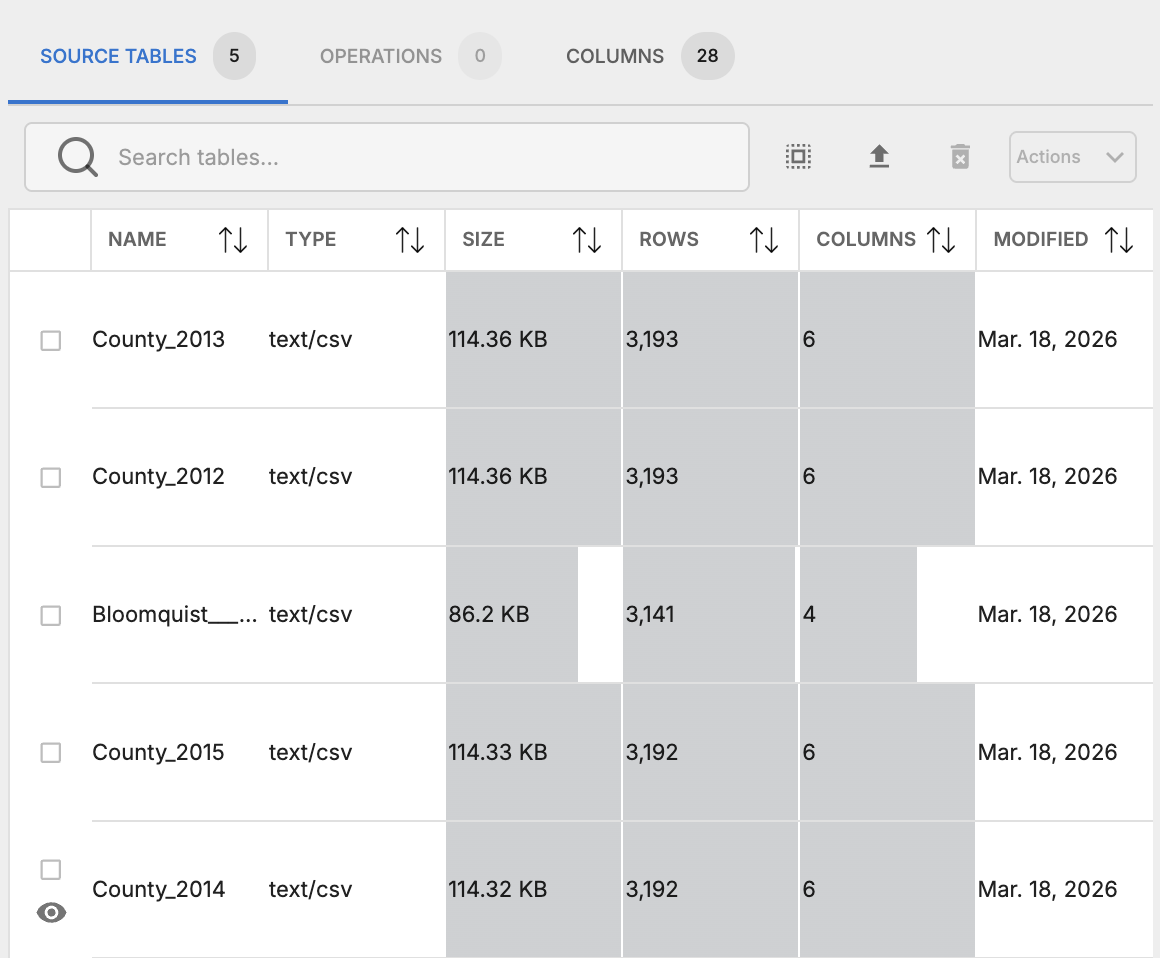 The Source Tables Tab provides an overview of all tables in the system
Navigation Bar
The Navigation Bar allows the user to perform the following actions on source tables.
 The Navigation Bar provides actions for managing source tables
- Table Search Bar: The search bar allows users to quickly find tables by name. As the user types, the table list is filtered in real-time to match the search query.
- Select/Deselect tables: This toggle button allows you to quickly select or deselect all tables in the list. This is useful for performing bulk actions on multiple tables at once.
- Upload Table: This button opens a file dialog, allowing users to upload a new table from a local file.
- Delete tables: This button deletes all currently selected tables from the system. A confirmation dialog is shown before deletion to prevent accidental data loss.
- Actions Dropdown: This dropdown menu provides additional actions that can be performed on the selected tables.
- Pack tables: This action adds selected tables to the previous operation via a pack operation.
- Stack tables: This action adds selected tables to the previous operation via a stack operation.
- Insert tables: This action inserts selected tables into the last operation in the current workflow.
Some of the buttons in this navigation bar will be disabled when the application is in a state where the action cannot be performed. For example:
- The “Delete tables” button is disabled when no tables are selected, as there are no tables to delete.
- You cannot pack more than two tables to a previous operation, so the “Pack tables” action is disabled when more than two tables are selected.
- You cannot insert tables into an operation if an operation is not in focus, e.g. when a table is in focus.
Data Table
The data table is a table of table metadata, each row representing a table in the system.
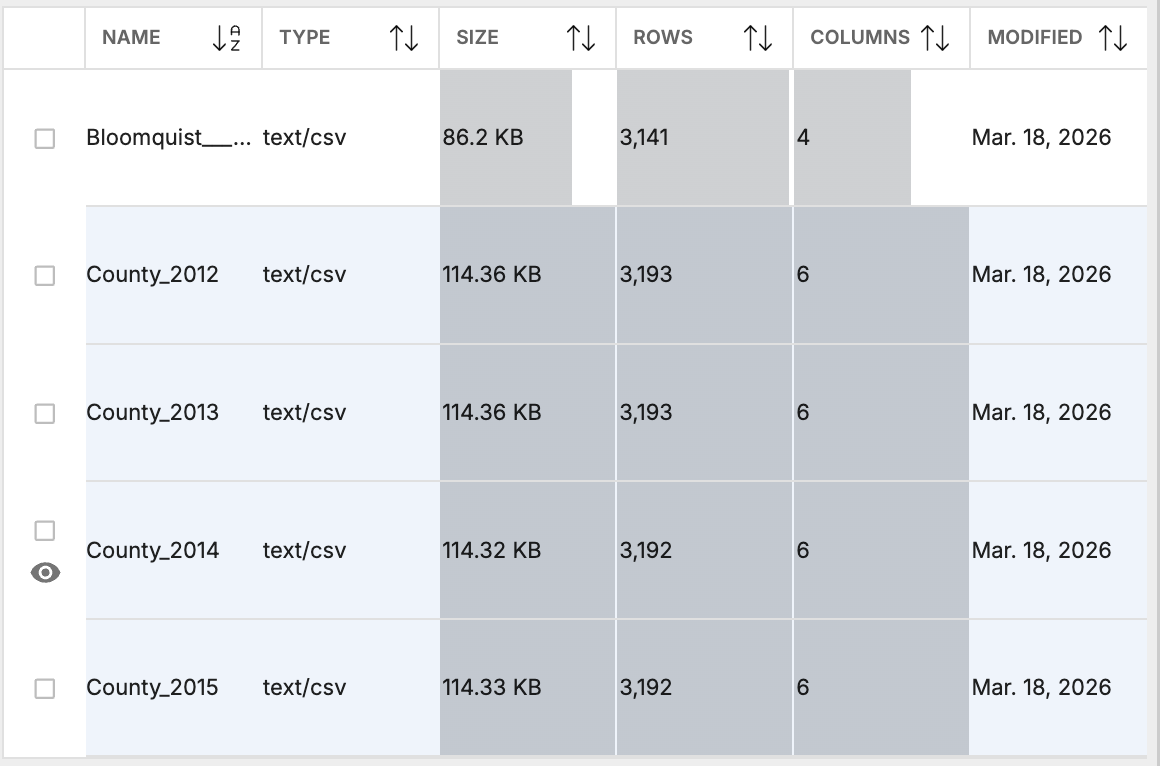 The Data Table provides an overview of table metadata. Each
 Count_* table is selected and County_2014 is currently in focus.
The table is sortable by each column, allowing users to quickly find tables of according to the following metadata:
- Name: The name of the table
- Type: The type of the table
- Size: The size of the table, in bytes
- Row Count: The number of rows in the table
- Column Count: The number of columns in the table
- Last Modified: The timestamp of the last update to the table. When tables are uploaded from a file, this timestamp reflects the last time the file was modified, not the time of upload.
For quantitative metadata, such as size, row count, and column count, the table displays a horizontal bar visualization within each cell, providing a visual representation of the relative magnitude of each table according to that metric. This allows users to quickly identify large tables or tables with many rows or columns at a glance. These bar are especially useful when depicting numeric values that change units with different magnitude, e.g. bytes, kilobytes, megabytes.
Operations Tab
While the Source Tables and Columns Tabs provide an overview of all those objects in the system, the Operations Tab provides details about specific operations in the current workflow. When an operation is in focus, the Operations Tab automatically is displayed with parameters relevant to that operation. Currently, OpenRoundup only supports two operations: stack and pack. When an operation is selected, it displays related parameters and statistics. For all operations, the operations tab displays the following information about the operation:
- Number of tables: The number of tables currently in the stack operation.
- Expected columns: The number of columns expected in the output table, based on the unique column names across all tables in the stack operation.
- Expected rows: The number of rows expected in the output table, based on the sum of row counts across all tables in the stack operation.
- Alerts: The number of alerts currently associated with the stack operation. Alerts are generated when there are potential issues with the stack operation, such as mismatched column names or data types across tables.
- Status: The current status of the stack operation, which can be one of the following:
- Not materialized: The stack operation has not been materialized, meaning the output table has not been computed yet.
- Materialized: The stack operation is materialized, meaning the output table has been computed and is available for use in subsequent operations.
- Out of sync: The stack operation is out of sync, meaning there have been changes to the schema after the table was last materialized.
At the bottom of the pane is a form footer with two button:
- Delete: This button deletes the stack operation, but it does not delete any of the tables in the stack operation. A confirmation dialog is shown before deletion to prevent accidental data loss.
- Updates: This button updates the stack operation with any changes made to the parameters in the form. This button must be clicked for changes to take effect.
Stack operation parameters
Stack operations only have one parameter: the order of child tables. This order can be changed by dragging and dropping tables in the form below.
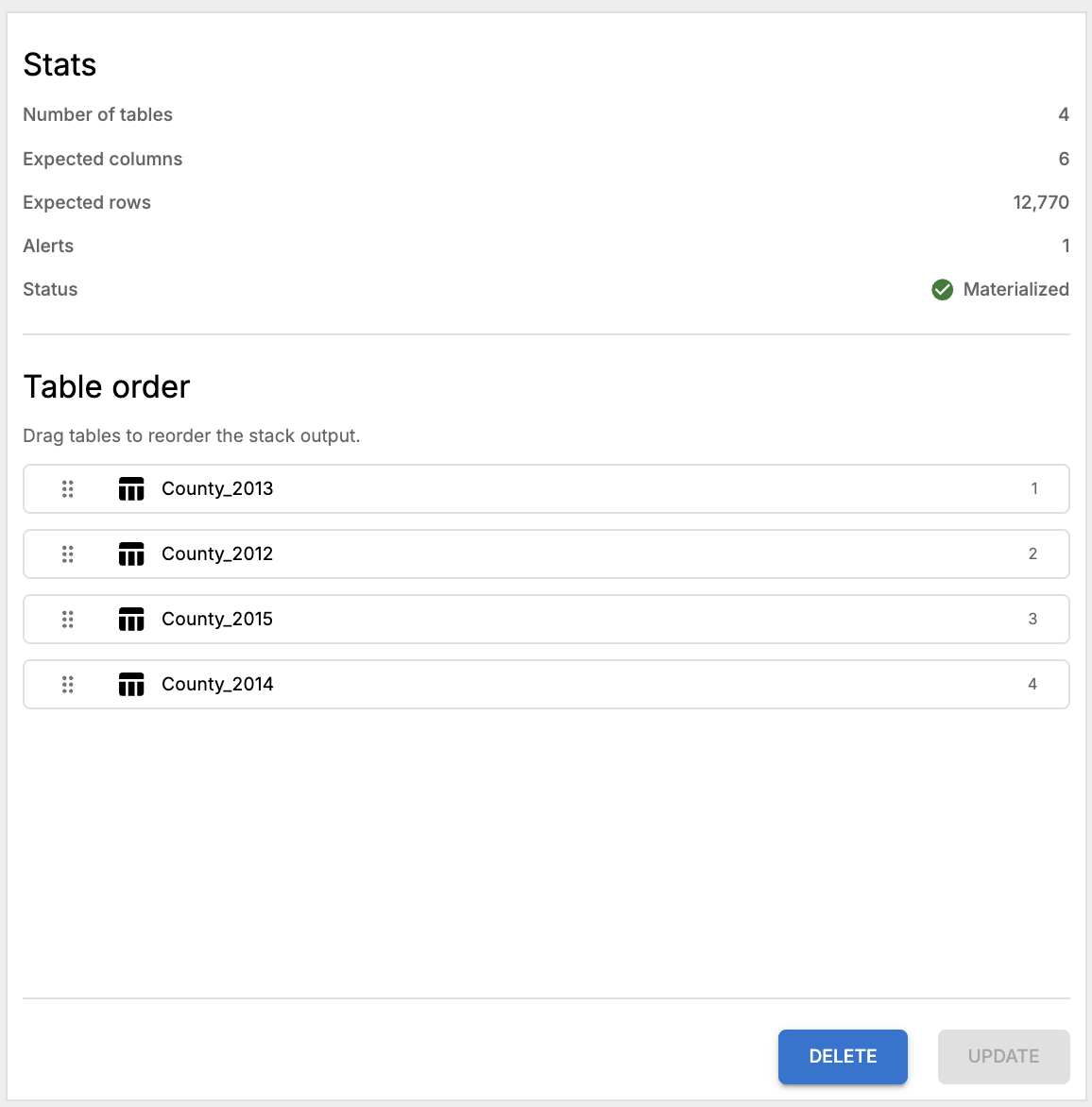 When a stack operation is in focus, the Operations Tab displays parameters relevant to the stack operation, such as the stacking column and value mappings.
Pack operation parameters
When a pack operation is selected, the Operations Table displays parameters relevant to the pack operation.
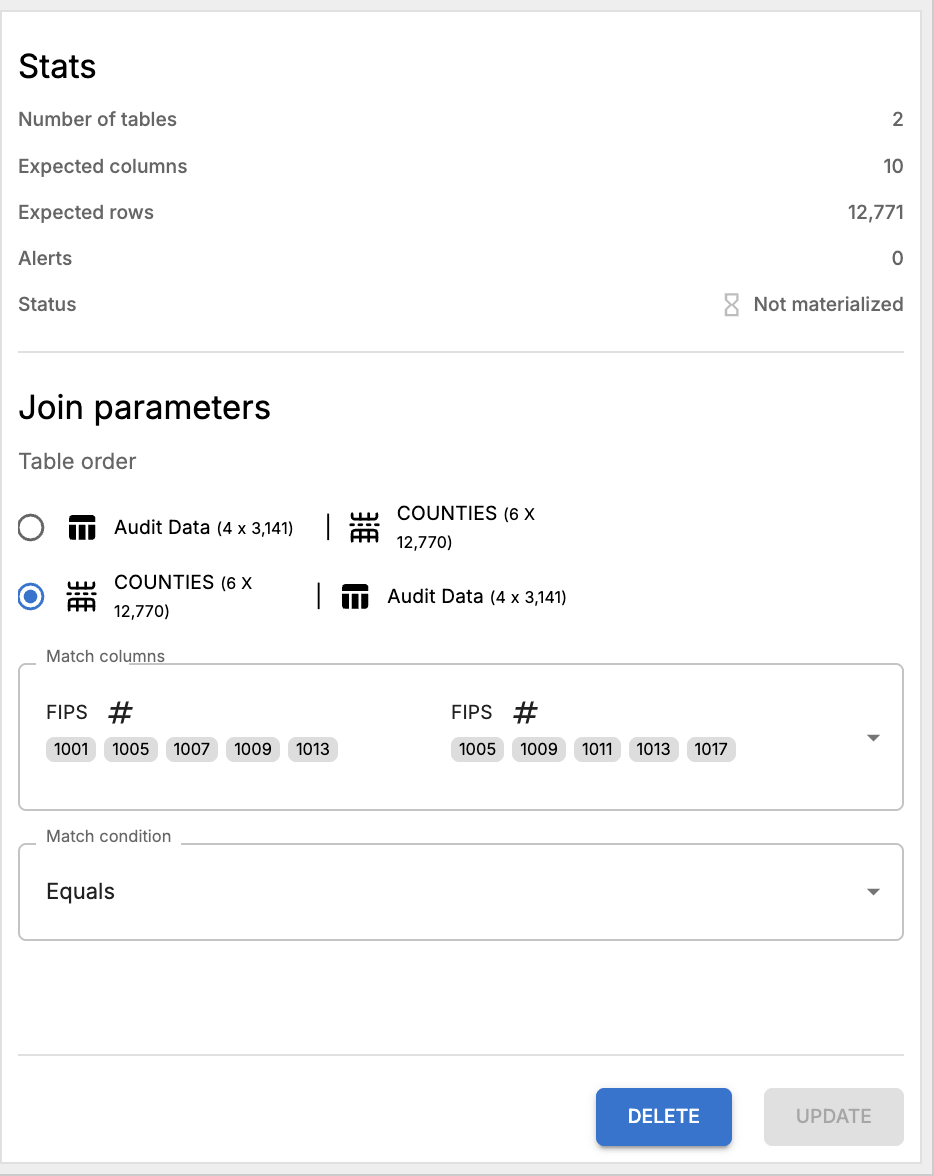 When a pack operation is in focus, the Operations Tab displays parameters relevant to the pack operation
- Table order: The order of tables in the pack operation. This can be changed by dragging and dropping tables in the form below. A Pack operation can only have two child tables/operations.
- Match columns: This dropdown menu displays a list of column pairs that have been identified as potential matches between the two tables in the pack operation. The user can select one of these column pairs to use as the basis for packing the tables together.
- Match condition: This dropdown menu allows the user to specify the condition for matching rows between the two tables in the pack operation. The options include:
- Equals: Rows are matched if the values in the selected columns are equal.
- Contains: Rows are matched if the value in the selected column of one table contains the value in the selected column of the other table.
- Starts with: Rows are matched if the value in the selected column of one table starts with the value in the selected column of the other table.
- Ends with: Rows are matched if the value in the selected column of one table ends with the value in the selected column of the other table.
Columns Tab
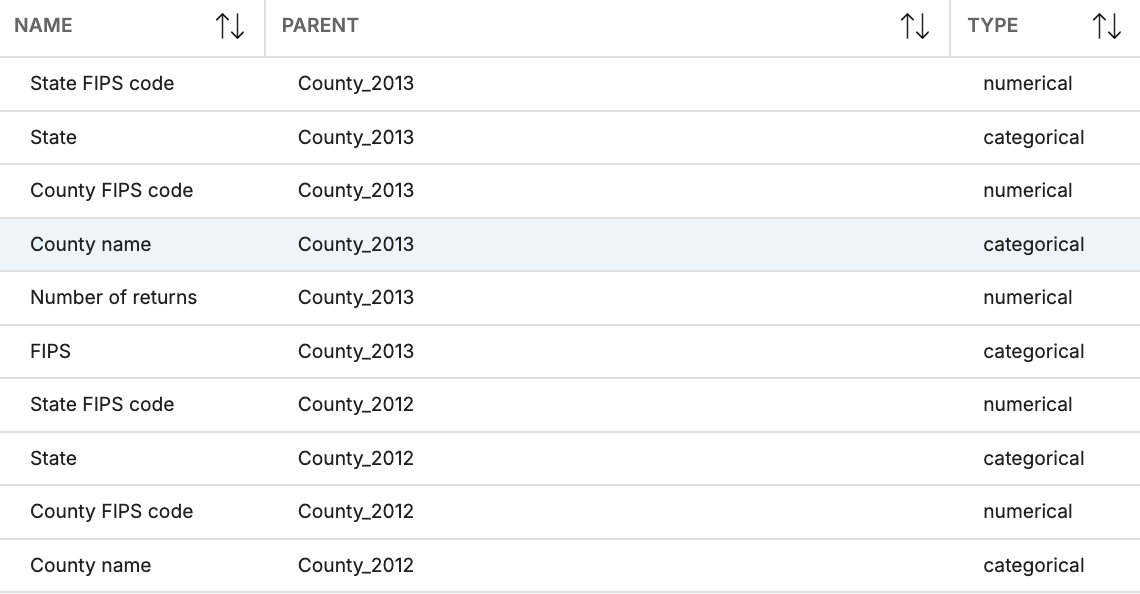
The columns tab provides a comprehensive overview of all columns in the system, including their metadata and table linkages. The numeric chip next to the text indicates the number of columns currently in OpenRoundup. This tab can be useful for quickly removing irrelevant or redundant columns across all tables, although such a task can also be accomplished before importing tables into OpenRoundup.
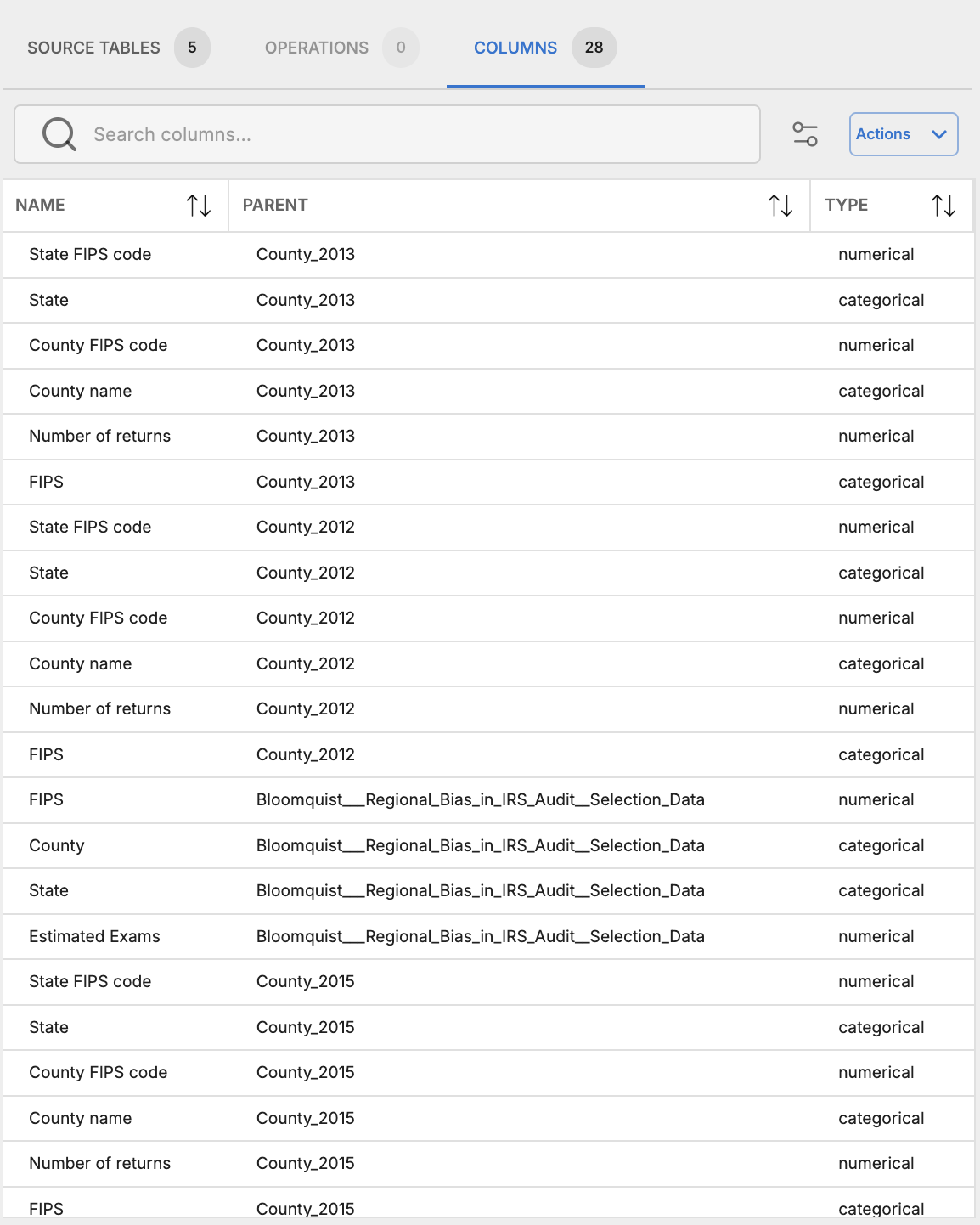 The Columns Tab provides an overview of all columns in the system, including their metadata and table linkages.
Like the Source Tables tab, the Columns tab is divided into a navigation bar at the top and a data table below.
Navigation Bar
The navigation bar in the Columns tab provides quick access to common actions for managing columns, such as searching, selecting, and performing bulk actions on columns.
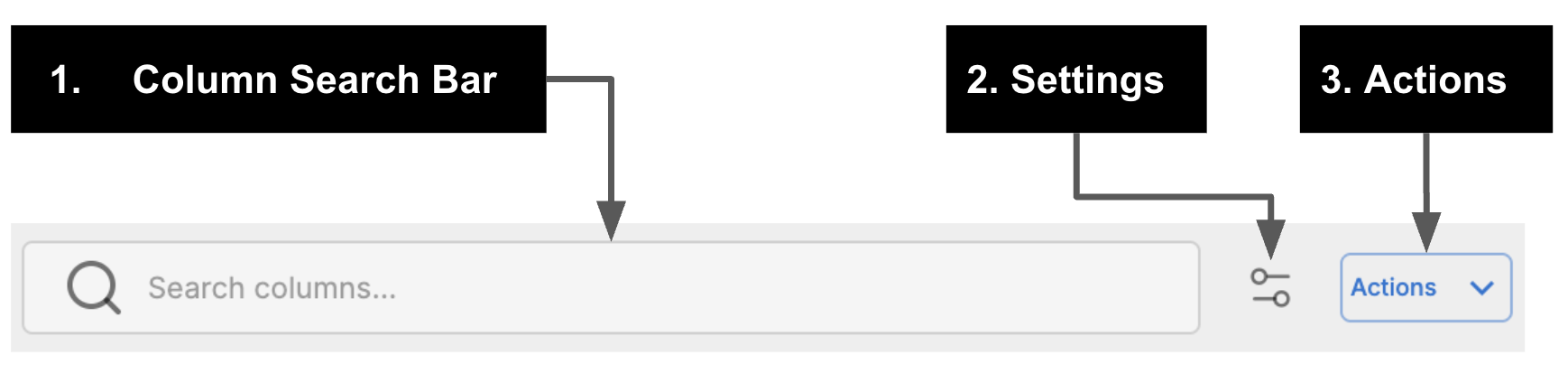 The Columns Tab navigation bar provides quick access to common actions for managing columns.
- Column Search Bar: The search bar allows users to quickly find columns by name. As the user types, the column list is filtered in real-time to match the search query.
- Settings: This button opens a columns settings dialog, allowing users to customize the display of columns in the data table, such as which metadata fields to show or hide. It includes the following options:
- Name: The name of the column
- Parent: The name of the parent table (or operation) that the column belongs to
- Type: The data type of the column (e.g. string, number)
- Index: The relative position of the column within its parent table
- Count: The number of non-null values in the column
- Unique Values: The number of unique values in the column
- Duplicate Count: The number of duplicate values in the column
- Unique %: The percentage of unique values in the column
- Null Count: The number of null values in the column
- Null %: The percentage of null values in the column
- Complete %: The percentage of non-null values in the column
- Non-null count: The number of non-null values in the column
- Mode value: The most common value in the column
- Mode count: The number of times the most common value appears in the column
- Average: The average value of the column (for numeric columns)
- Min: The minimum value of the column (for numeric columns)
- Max: The maximum value of the column (for numeric columns)
- Std Dev: The standard deviation of the column (for numeric columns)
- Median (P50): The median value of the column (for numeric columns)
- 25th Percentile (P25): The 25th percentile value of the column (for numeric columns)
- 75th Percentile (P75): The 75th percentile value of the column (for numeric columns)
- Actions: This dropdown menu provides additional actions that can be performed on the selected columns.
- Select all: This action selects all columns in the list, allowing users to perform bulk actions on all columns at once.
- Deselect all: This action deselects all columns in the list, allowing users to quickly clear their selection.
- Summarize: This action generates a summary of the selected columns, limited to 1 selected column.
- Compare: This action compares selected columns, must have at least 2 selected columns, and at most 5 selected columns.
- Delete: This action deletes the selected columns from their parent tables. A confirmation dialog is shown before deletion to prevent accidental data loss.
Data Table
The data table in the Columns tab provides a comprehensive overview of all columns in the system, including their metadata and parent table linkages. It is filterable based on the selected column metadata fields in the settings dialog, allowing users to customize the display of columns according to their needs.